Vernum
SMS Verification · Virtual Number

Apple ID Virtual Number for SMS Verification

Setting up a test or secondary Apple ID and Apple wants a phone number? Rent a temporary number and read Apple's code in your dashboard, but first read what that number does on an Apple account.

190+ countries Instant delivery Automatic refund
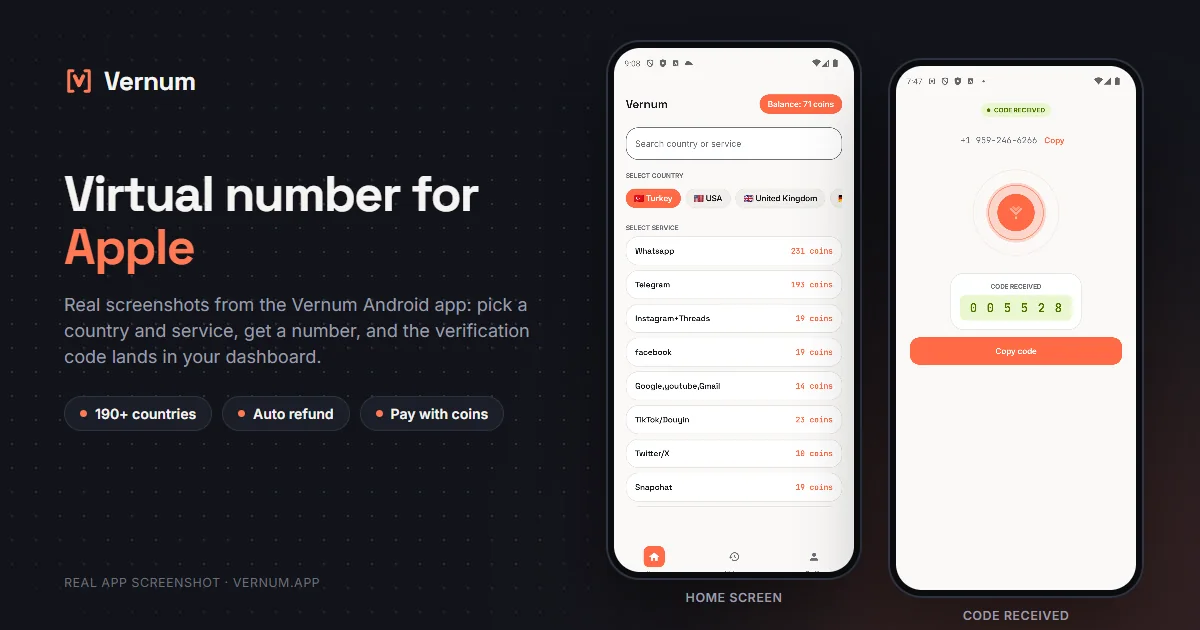
Vernum Android app screenshots: choosing a country and service on the home screen, then the received SMS verification code for Apple
Real app screens: pick a country and service, get a number, and the Apple verification code lands in your dashboard.

Why a virtual number for Apple?

When you create an Apple ID, Apple stores the phone number you enter as a trusted number and uses it not just for the first code but for later sign-ins and account recovery too. So a single-use number only makes sense for a secondary or test Apple ID: trying another App Store region, or giving a development device its own account. Rent a real number from Vernum, enter it on Apple's verification screen, and the code lands in your Vernum dashboard. We don't recommend this for your main Apple ID.

The number is reserved only for your activation; once the code arrives and you finish verifying, it goes back to the pool and you won't have access to it again, so add a permanent trusted number right after. If the timer runs out before a code shows up, the coins you spent go back to your balance automatically.

Get your code in three steps

1

Pick a country and service

Pick the Apple service in the dashboard; countries are sorted by measured success rate.

2

Get your number instantly

A real number is assigned to you, ready to receive the code.

3

See the code in your dashboard

Enter the number on Apple's phone verification screen; the incoming code appears instantly in your dashboard and as a notification.

Step by step: verifying Apple ID with a virtual number

This walkthrough covers filling the phone field with a Vernum number while creating a new Apple ID, and it ends with the step most people skip: adding a permanent number afterward.

  1. In the Vernum dashboard, pick Apple from the service list. Countries are sorted by measured success rate, so start near the top of the list and rent the number. It appears immediately with a countdown timer next to it.
  2. Open the Apple ID creation screen: the sign-in row at the top of Settings on an iPhone, System Settings on a Mac, or account.apple.com in a browser. Work through name, birthday, and email until you reach the phone number field.
  3. Choose the country of your Vernum number from the country-code dropdown, then paste the number without the country code. Leave text message selected as the verification method and tap Continue.
  4. Go back to the Vernum dashboard. Apple's 6-digit code shows up in the dashboard and as a notification before the timer runs out; type it into the boxes on Apple's screen. If no code arrives, your coins are refunded automatically when the timer ends, so try another country.
  5. Once Apple accepts the code, the account is created and this number is saved as your trusted phone number. Two-factor authentication is on by default, so the next time you sign in on a new device Apple will try to send a code to this same number.
  6. Right away, open Sign-In and Security at account.apple.com, add your own permanent number as a trusted phone number, and set up a recovery contact or recovery key if you can. Once the single-use number returns to the pool, it cannot carry codes for you anymore.

Which country's number works best?

Apple checks numbers added as trusted numbers at the operator level and may decline some number ranges; that varies by country and over time, so naming one best country would be misleading. Vernum sorts the country list by real measured success for the Apple service: start at the top, and if no code arrives, take the refund and move one row down. Matching the number's country to the Apple ID's region usually reduces friction.

Apple virtual number prices

Catalog snapshot from 2026-08-26 — the countries where Apple numbers are cheapest, in coins. 1 coin ≈ $0.01; see the catalog page for live prices and all 157 countries.

CountryPrice
🇮🇩 Indonesia2 coins
🇹🇯 Tajikistan2 coins
🇰🇿 Kazakhstan4 coins
🇦🇴 Angola5 coins
🇭🇰 Hong Kong5 coins
🇰🇪 Kenya5 coins

Common mistakes in Apple ID verification

Forgetting to add a permanent number

This is the big one. If the virtual number stays the only trusted number on the Apple ID, there is nowhere for the code to go when you sign in on a new device, and getting the account back can take a long time.

Entering the country code twice

If you pick the country from the dropdown and then paste the number starting with a plus sign and country code, Apple treats it as invalid and the text message never goes out.

Using it for your main Apple ID

A single-use number is a poor fit for the account that holds your purchases, iCloud backups, and photos. Keep this method for a secondary or test Apple ID.

Closing the screen before the timer ends

Apple sometimes sends the code a few minutes late. As long as the timer in the Vernum dashboard is still running, the number is still yours; wait it out, and if nothing comes the refund is automatic anyway.

Virtual number or your own number?

On an Apple ID, the phone number is not just for signup; it receives a code every time you sign in on a new device, so choose with that in mind.

SituationRecommendation
Main Apple ID with iCloud and purchasesYour own number — account recovery and two-factor codes depend on it, and a single-use number is a real risk here.
Secondary Apple ID for testing appsVirtual number — a developer test account or a short-lived trial account does not need your real number, though you should still add a permanent one afterward.
Separate Apple ID for a work deviceYour own number or a company line — accounts that need to last and be managed over time need a number you can always reach.
You just do not want to give Apple your real numberSign up with a virtual number, then lock the account down with a recovery contact and recovery key; but do not rely on it long term without at least one permanent number.

Why Vernum?

🎯 Sorted by success rate

The country list is ordered by real measured delivery success — you choose by data, not luck.

↩️ Automatic refund

If the timer runs out before a code arrives, your coins return to your balance on their own.

🌍 190+ countries

A live catalog refreshed hourly, with dozens of operator pools per country.

🍎 A test or secondary Apple ID

Set up a separate Apple ID for a development device or another App Store region, and leave your main account out of it.

Frequently asked questions

How do I get a virtual number for an Apple ID?

Create a Vernum account, add coins, then pick a country and the Apple service. A number is assigned instantly; enter it at the phone number step while creating the Apple ID and the incoming SMS code shows up in your dashboard. Use this only for a secondary or test Apple ID.

Will an Apple ID opened with a virtual number keep working?

The account works once verification is done, but there is an important difference: Apple keeps this number as a trusted number and may text it again at later sign-ins, when you add a new device, or when you reset your password. The virtual number is single-use and returns to the pool, so you won't receive that code. Right after verifying, go to Settings, Apple ID, Password and Security, add a permanent trusted number, remove the virtual one, and set up a recovery contact or recovery key.

What happens if the Apple code doesn't arrive?

If the number expires before a code arrives, the coins you spent are refunded to your balance automatically. Apple may never send an SMS to some number ranges or may reject a number silently; the refund works the same way once the timer ends, and you can retry with a different country.

Is using a virtual number for an Apple ID legal?

Yes. Renting a virtual number and using it to verify an Apple ID is legal. Apple's rules are about how the account is used: bulk account creation, gaming the App Store, or impersonating someone violate its terms. There is a separate, practical point: an Apple ID whose trusted number can't be reached is hard to recover. That is not a legal risk but a real one, and adding a permanent number avoids it.

How long is the number mine?

The number is reserved for you until the Apple code arrives; once the code shows in your dashboard and verification is done, the number goes back to the pool and is never assigned to you again. Apple, however, keeps it on file as a trusted number, so right after creating the account add a real, permanent trusted number, remove the virtual one from the list, and set a recovery contact.

How do I add my own number to the Apple ID later?

Sign in at account.apple.com, open Sign-In and Security, choose add under trusted phone number, enter your own number, and confirm the code that arrives. On an iPhone the same setting lives under Settings, your name, Sign-In and Security. Once the new number is verified, codes go to it as well.

What if Apple rejects the virtual number?

Apple does not accept every number range. If you see a message saying the number cannot be verified, pick a different country in the Vernum dashboard and try again. Coins for a number that never received a code are refunded automatically when the timer ends; there is nothing extra to do.

Can I create a second Apple ID with the same virtual number?

No. Vernum numbers are single-use; once the code arrives, the number goes back to the pool. Each new Apple ID needs a freshly rented number, and Apple itself limits how many accounts can be tied to one phone number.

Related guides

Get your Apple code now.

Create an account for your secondary Apple ID, add coins and rent a number in seconds; remember to add a permanent trusted number after verification.

Go to dashboard →